

Quick note: Aman Khan and I just opened our third cohort of “Build AI Product Sense.” Get $1000 off early discount before April 21.
We solved file sharing 19 years ago, and we still haven’t solved shared AI context. The goal, in the words of Zapier’s VP of Product, is “context engineering as a team sport”: how do you share knowledge, skills, and instructions across your team, function, and company.
Two reasons to sync up everyone’s AI:
Each individuals’s AI starts with access to a ton of context and knowledge, instead of a blank ChatGPT thread (imagine the impact on new hires)
Each person’s improvements to their AI’s context and skills levels up everyone else’s use of AI. AI’s knowledge compounds.
So I pinged you all with three questions:
Where does your team write and think together?
Where do people individually collaborate with AI?
And where does your team collaborate with each other AND with AI?
The first two had clear answers:
Where people collaborate with each other: mostly Google docs, Notion and Confluence tied for second, and then Microsoft 365.
Where people collaborate with AI: power users use Claude, while their colleagues are using ChatGPT, Gemini, Microsot Copilot, etc. (Notion users barely mentioned Notion AI.)
The answers to question #3 were, well…
“This is basically not happening.”
“Collaborating with AI is still something we haven’t solved.”
“It’s fairly painful right now. I basically maintain a local version and a google docs version of the files I care about. I collaborate with AI in my local version and my teammates in google docs.”
“a teammate copies it over to their llm to get their own take on the whole thing and pastes the new version in a new doc”
Sigh. If you’ve been wondering why this is hard, you’re not alone, we’re all scratching our heads on this. I wanted to reflect what you’ve all shared with me, and what I recommend from helping product organizations with AI transformation.
A few warnings about what you’re about to read:
It’s jank. This space is in an awkward adolescence.
It’s Google-centric. I hope it’s easy to extrapolate.
It’s plumbing. I'm ignoring culture, habits, leadership, shared Slack channels, hackathons, weekly demos, critical mass, and all of the human parts of transformation.
What to give AI
The most powerful way to use AI at work is download a desktop AI agent (Cursor or Claude Desktop are my favorites) and give it a bunch of files to read and work on.
Whether you use AI locally or on the web, it’s hungry for context. Context starts with the same knowledge human employees need to succeed.
Some docs are shared company-wide, others within a team, others privately. Give them all to AI:
Shared by the executive team with everyone: Mission/vision/strategy docs, company-wide OKRs, market landscape and competitor table, top-level metrics, org chart, even quarterly planning transcripts1.
Shared by a department, say, product and design, with everyone else: Product development process, design system, roadmap, data schema, customer personas, PRD templates, PM area ownerships.
Shared privately within a team: Past retrospectives and scars, dependencies on other teams and key contacts, rollout groups and notification channels, workarounds for known issues
Private to you: Draft works in progress, stakeholder dossiers, manager & colleague feedback from performance reviews, product wisdom you’ve bookmarked but keep forgetting to apply in the moment…
How to share AI context across an org
Let’s start with one file, say, company_strategy.pdf.
How do we get the same company strategy to appear on everyone’s computer, so everyone’s AI can use it? Fortunately, Google Drive, Dropbox, etc. solved this nearly two decades ago.
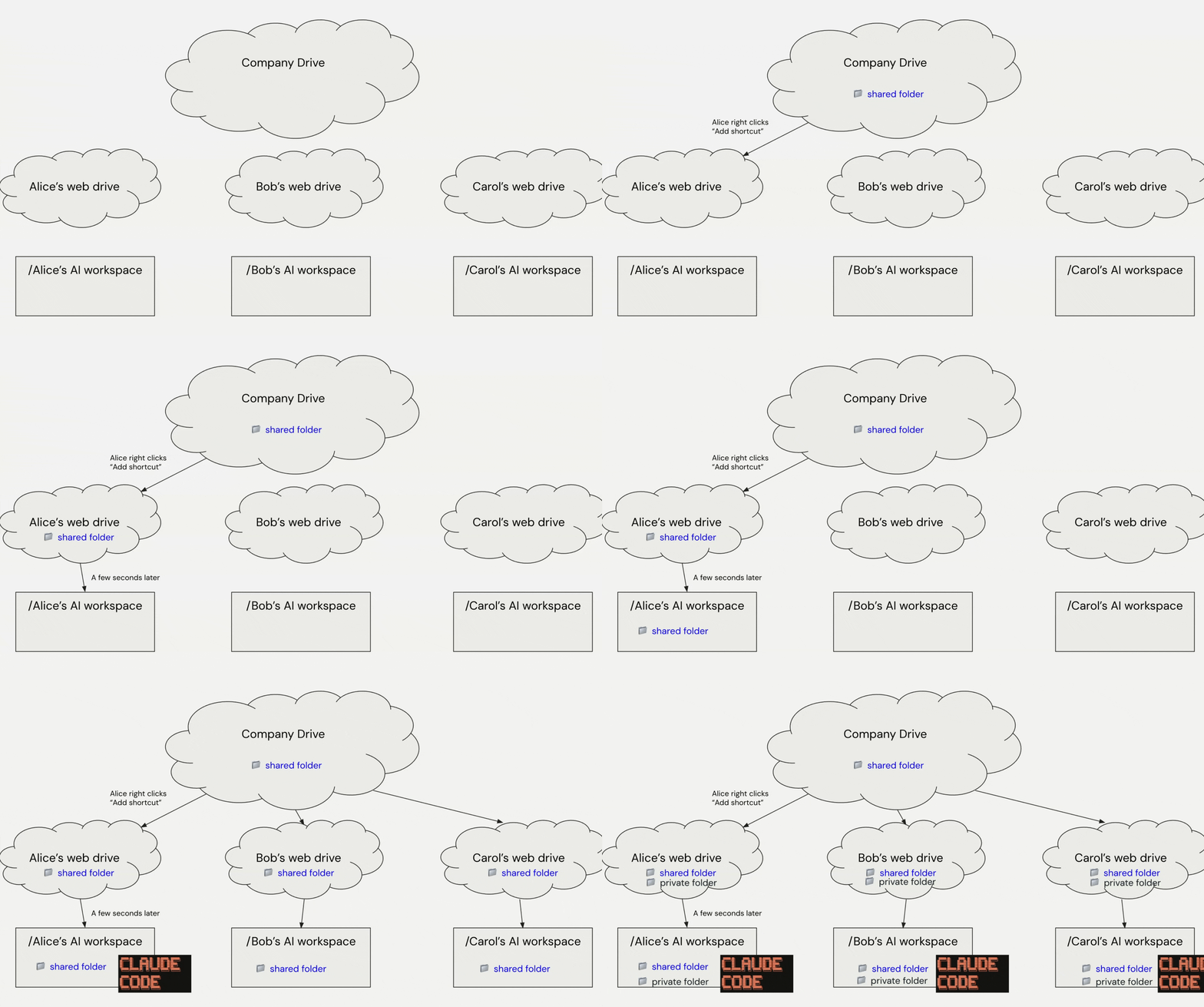
Here’s my recommended plumbing:
Create a company-wide shared folder called “[Company’s] AI context megabrain folder” and invite everyone. (Tip: use a “shared folder,” not “shared drive.”2)
Everyone install Google Drive desktop to their computers.
Each individual creates a new folder called “[Name]’s AI workspace” inside their “My Drive.” This folder will be their personal working directory, and contain both private and shared AI context.
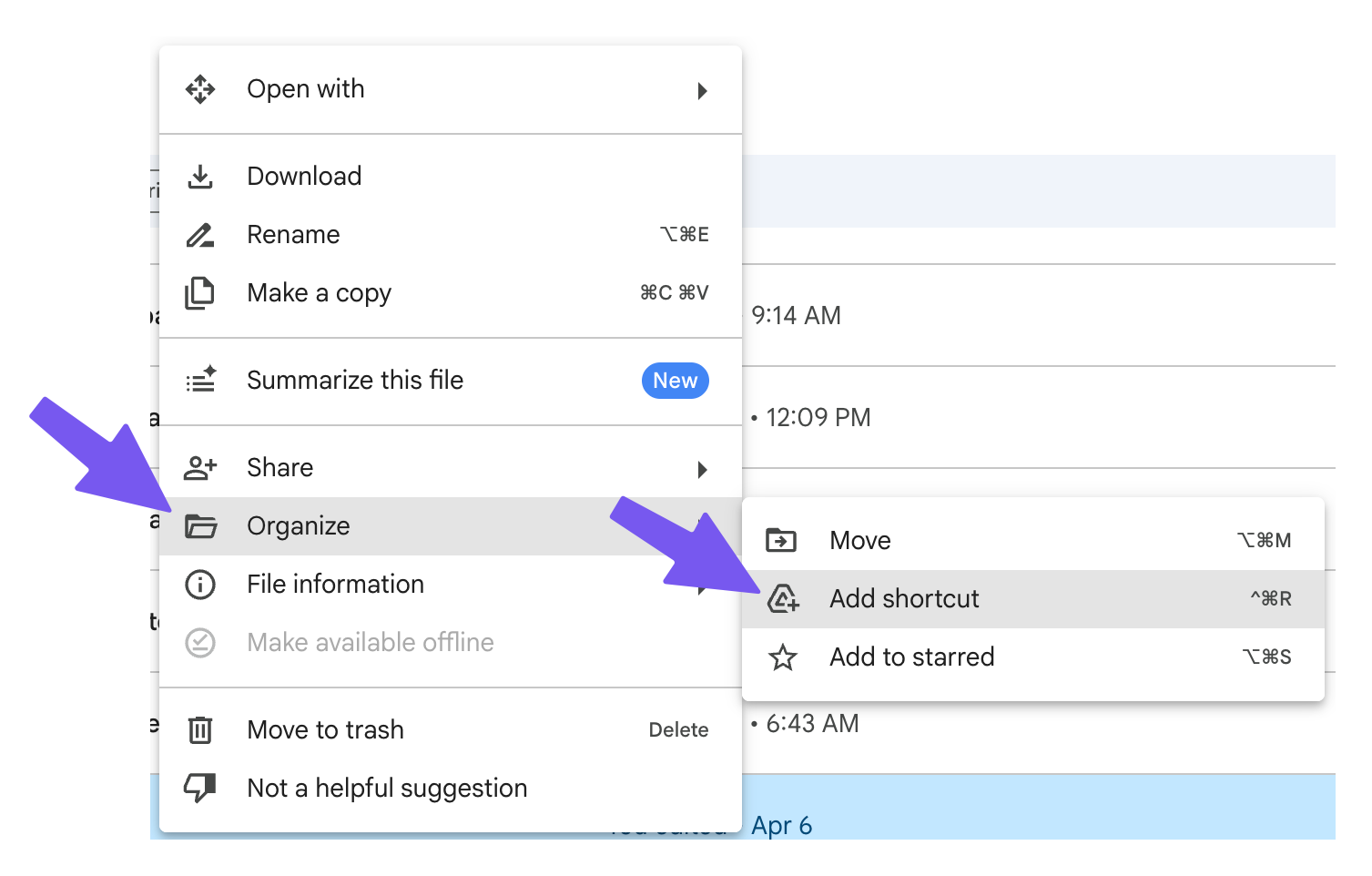
Have everyone right click the company megabrain folder and click “add shortcut” to their “[Name]’s AI workspace” folder. It will appear locally on their computer.
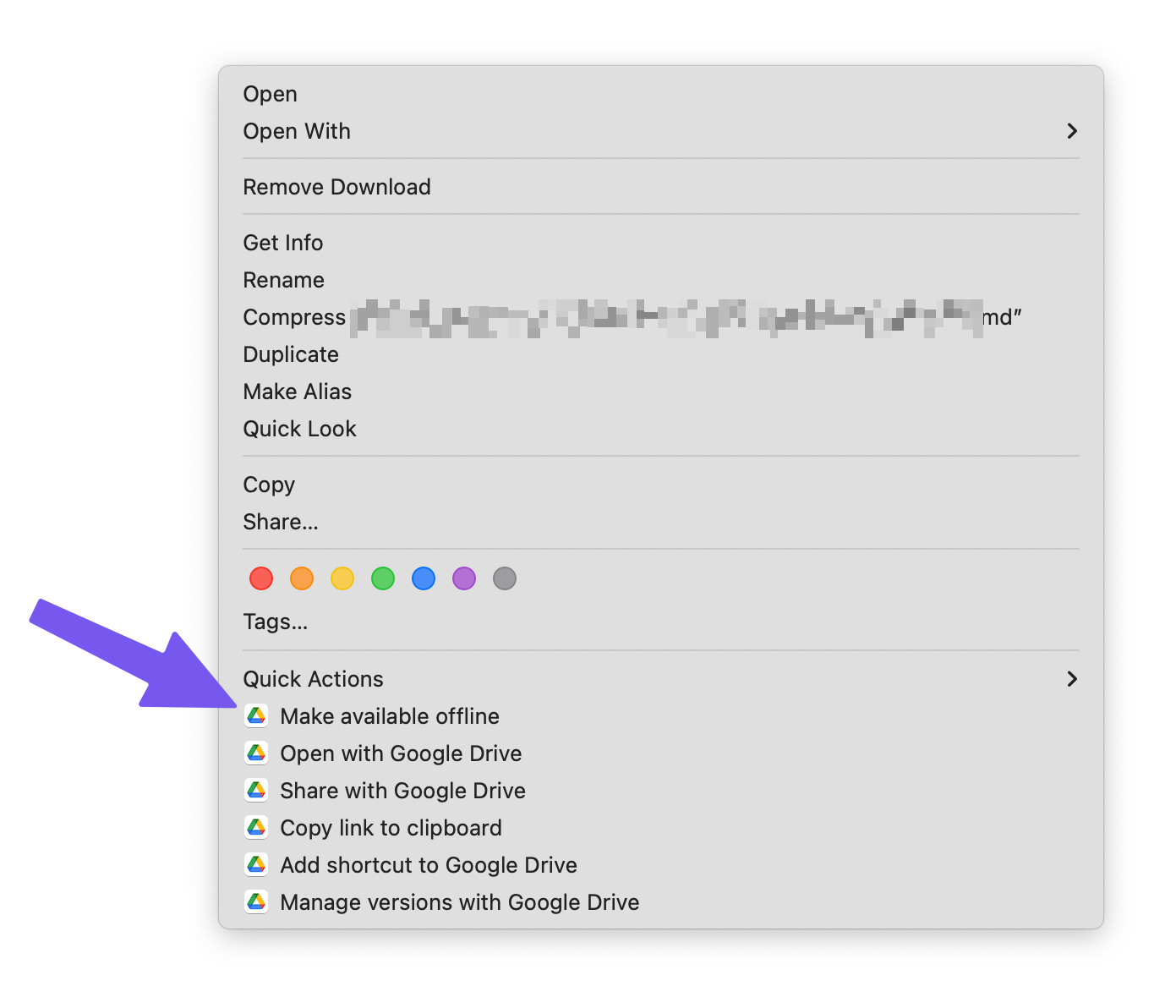
On your computer, find the folders and right click “make available offline” so all files get downloaded to your computer, so AI can read them.
Open “[Name]’s AI workspace” folder in your desktop AI agent of choice
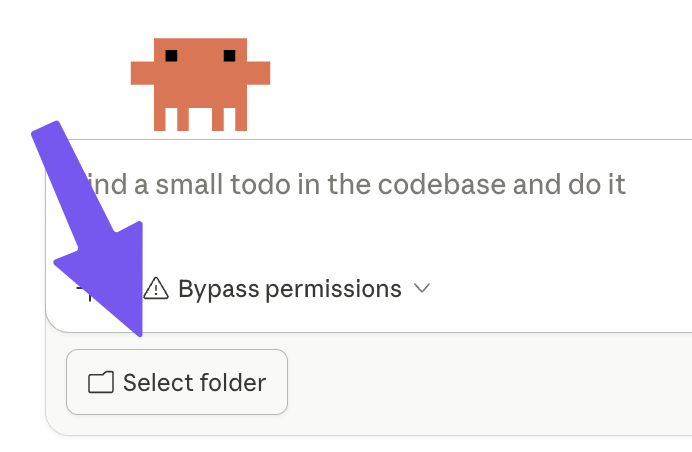
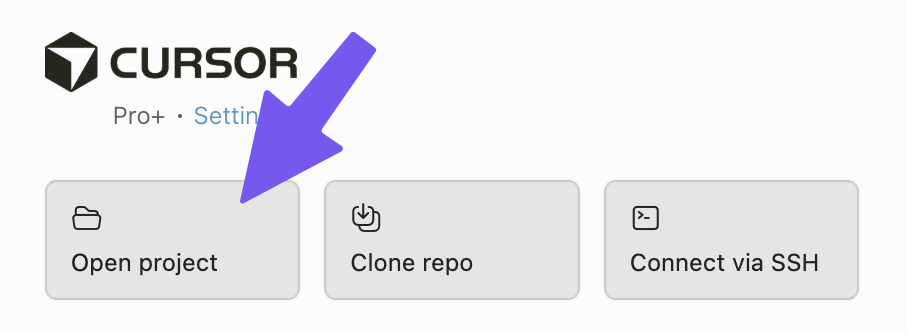


You’re ready to use AI with your shared company context! Start by asking, “tell me what you see in here.”
You can repeat steps 4 and 5 for any shared folder, whether at the team level or department level. That way your workspace has a bunch of private personal stuff and a bunch of shared folders alongside each other:

Could we use MCP instead?
In theory, I love the idea of connecting my agent to my favorite cloud document provider (Drive, Notion, Confluence, etc) and saving this desktop hassle.
In reality, MCP for basic document collaboration feels slow, limited, and blunt. In addition to functional limitations, each “trip” to search, retrieve, or edit takes a long time, and for long-running tasks with lots of calls, the pain compounds.
Today, nothing beats an agent with a local filesystem for autonomy and agency, and much of it is thanks to local tools and zippy, chained terminal commands (for example, grep, the terminal version of “Cmd + F”).
MCP limits agents from quickly traversing large amounts of text and experiencing serendipity. Since the documents live far away from the agents, agents don’t know what they don’t know. That said, lots of smart people are working on making remote integrations feel more like local operations. 🤞
But [latest startup] solves this!
Yes, there are new products that do bla bla bla. If you’re a team of three, go for it. This tweet thread has a good list.
For everyone else, I recommend sticking to the cloud-file-sync service your org is already using. That lets people focus on the AI part, which is enough of a learning curve. It’s hard enough to get everyone to use one piece of software. Also, IT and legal already approved.
What about GitHub?
GitHub “repository” and Google Drive “shared folder” are the same thing. They’re both a folder in the cloud keeping a bunch of people’s files in sync, while tracking changes and versions.
If Google Drive is driving automatic, GitHub is driving stick. Imagine every time you want to make a change to a document, you fill out a form (“commit”). Sometimes you have to wait for approval (“pull requests”).
So why do people use GitHub?
Changes are high-stakes and high-process (like software development)
They want geeky street cred (guilty)
For knowledge work, it's halting and annoying. Committing every change sucks. It's a lot of new habits to learn that are not natural to normal people (yes, even if your agent is handling the commands, you still need to understand the concept).
“Trying to get everyone into a GH repo but it’s like pulling teeth!”
"I'd love if everything were just in Git, but that makes on-cloud editing painful. Haven't found a great solution here yet."
The respondents who mentioned GitHub favorably were small teams, or leaned technical.3
How should we structure the folders?
It doesn’t matter. Do what makes sense for humans (the agents don’t need our help). If you’re stuck, start by organizing by function, and let individual teams create their own shared folders.
This is highly reversible, so start lazy.
What about CLAUDE.MD / AGENTS.MD?
These files are the “custom instructions” that your agent will follow when working with you (the name depends on the agent you’re using). The rule of thumb is ~200 lines max. Since they’re applied to every conversation, use them for timeless information like behaviors, style, and what kind of partner you want.
Put these files in the root of your “[Name]’s AI workspace” folder. That’s the top-level folder you’ll work out of with your AI agent, and it will contain both shared folders and personal context. By putting it here, it applies no matter what you’re working on.
To get started, you can say “Create CLAUDE.MD for me so you act like a french sous chef.” Test it out by starting a new thread and ask it how not to overcook salmon.
Then, replace that with this prompt as a starting point (there’s nothing sacred about this prompt, modify it as much as you want). You’ll edit this file when AI acts weird. If your AI workspace is your personal AI product, instructions files are your best lever for iterating and making it better.4
What format should the files be in? Google Docs? Markdown?
Both work.
Local markdown files (aka hipster text files) are great for locally collaborating 1-1 with AI, or for canonical knowledge that we want to be easily accessible locally (keeping it locally in a text file lets AI work way faster).
Google docs live only in the cloud. There’s no local version. Google docs can be read if your agent has a Google Drive connector, like Claude. That said, even with an official connector, Google docs are read-only5.
Even though local files feel like stepping back in time, they have big advantages (see my gripes with MCP, above).
Disclaimer: If your local AI agent doesn’t have a Google Drive connector (I’m still waiting for Cursor to get one), you’ll have to move everything to non-Google-doc formats (text, csv, pdf, etc), and use Google Drive purely as a cloud file sync thing (since your AI can’t read web Google docs, you’ll only use them for collaborating among humans). Oh, and you won’t be able to edit your markdown text files on Google drive web.
I told you this is jank.
Conflicts, governance, permissions, oh my!
If there’s one thing Google Drive is good at, it’s keeping things safe and separate:
Folders enforce permissions. If you want something shared with a limited group of people, create a shared folder that only that group can sync to their local computer.
If a document is really high stakes and you don’t want anybody to touch it (but you do want them to be able to read it), use the lock feature. You can also monitor changes with the activity feature.
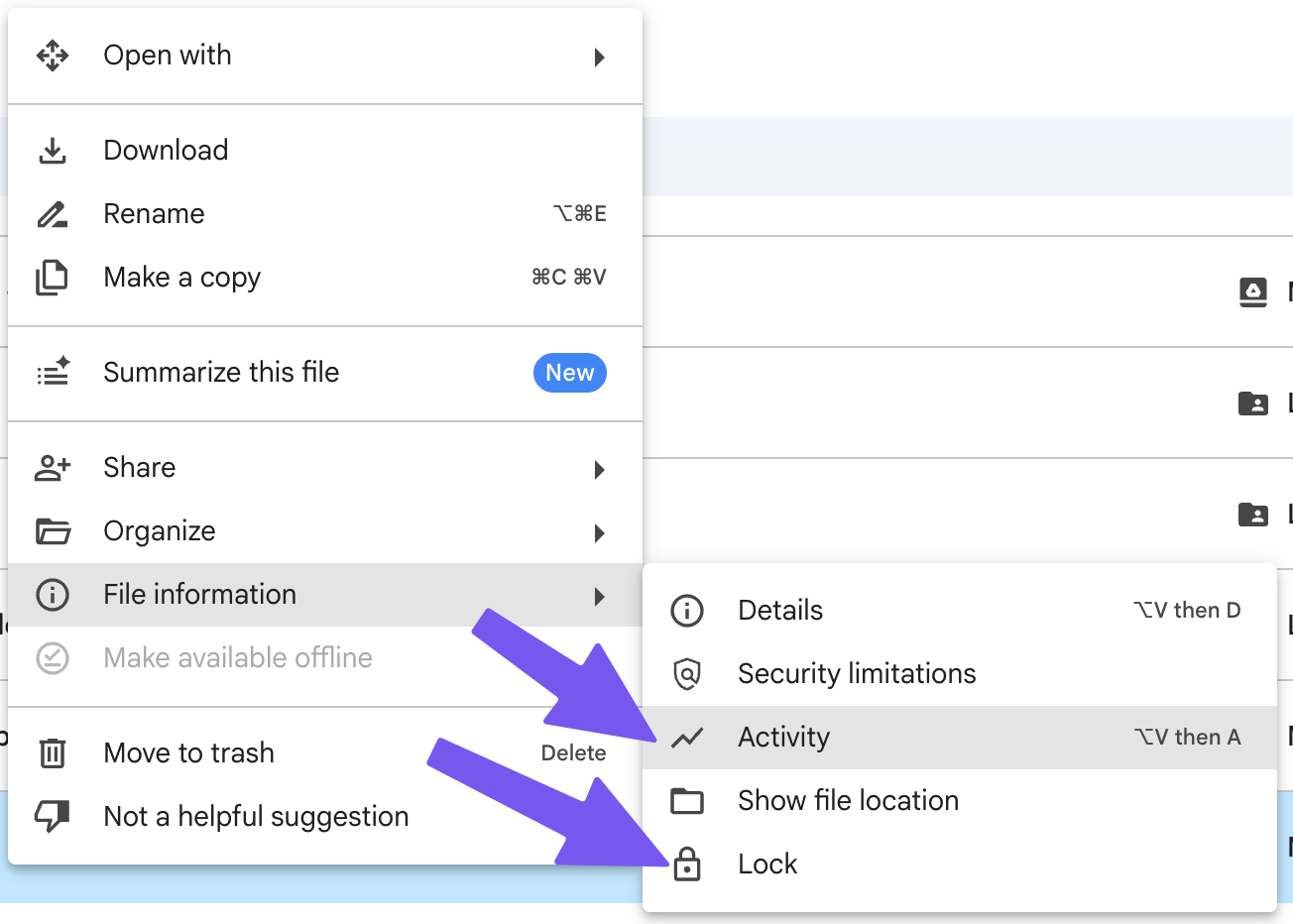
If a document has enough people working on it at the same time that risks having a conflict, use a Google Doc.

What if I don’t want to share?
For personal files, keep them in your “AI workspace” folder but outside any shared folders.
For team-private folders, create a shared folder just for your team (then “add shortcut” to your “AI workspace” folder).
Why a local desktop agent?
Local agents can do a ton because they’re physically running on your computer. I’m a big fan of desktop AI agents:
When you use local files, the files you edit become your context and memory—a fast improvement loop. Desktop agents can traverse thousands of files in seconds.
Desktop agents act through Claude for Chrome, computer use, and built-in browsers. Running locally tightens every feedback loop, and that speed compounds. Even Manus went desktop.
Agents learn about the world through code, and express themselves through code: data analysis (SQL), visualization (HTML, excalidraw, SVG, etc), file manipulation (terminal), etc.
As a product person, I build technical intuition by osmosis, by watching the reasoning, tool calls, subagent use, context management, etc.
The most fully-functional desktop agents are Cursor and Claude.
Cursor or Claude?
Right now, Claude. It has a Google drive connector, and is the most focused on knowledge work.
I know, I know. Two months ago, Aman Khan and I published a guest post in Lenny’s newsletter raving about Cursor:

I was hoping for two things: 1) Cursor would work well with Google Docs, and 2) it would become more usable to non-technical knowledge workers. So far, neither came true.
Cursor and Claude are fundamentally the same
A frontier LLM
Running on your filesystem
With local tools and remote MCP integrations
Cursor is still my go-to for pairing with AI. I can see the doc it’s modifying, review the changes, and jump in there myself.6 For product people, Cursor is the best for watching AI agents at work and building AI product sense. That said, Cursor’s roadmap seems to be focusing on engineering use cases. EDIT: Two days after publishing, Claude Desktop released a UI update that includes a lot of the features that make Cursor great for building AI product sense.
Claude Desktop is great for delegating long-running tasks, and is morphing into OpenClaw one feature at a time. But being autonomous means it’s harder to pair with. Fortunately, their roadmap is clearly aimed at knowledge workers.
As for me? I still mainly work in Cursor for non-technical work because I like being in the weeds with AI. I switch to Claude when I vibe code or want to talk about a Google Doc. (Don’t read too much into that habit, it’s mostly personal inertia.)
How to collaborate on a document with both humans and AI
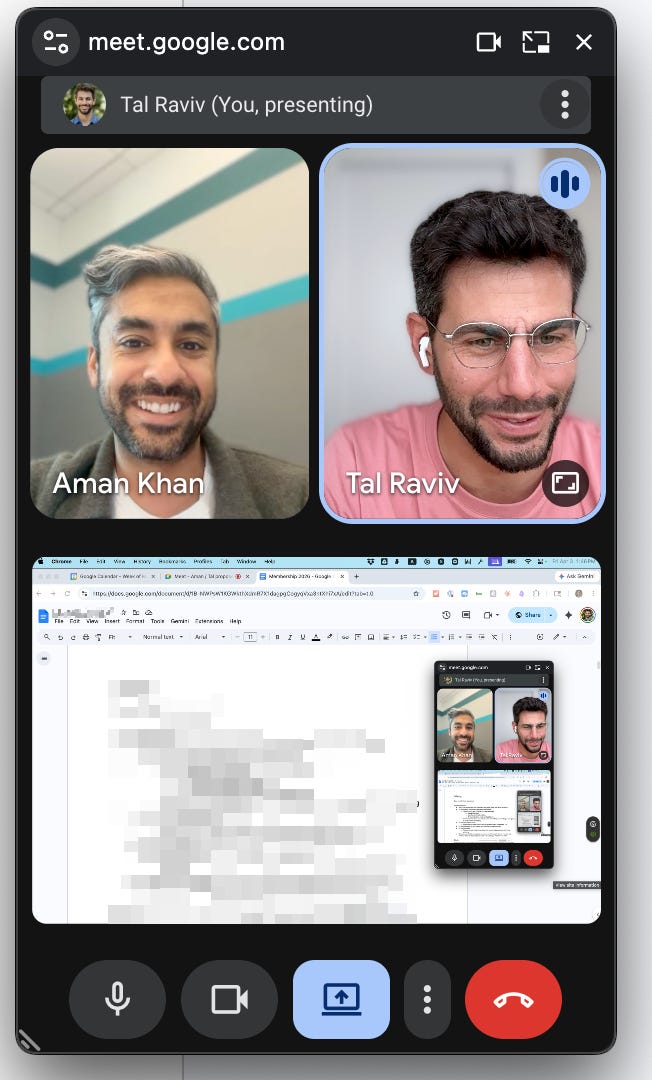
Back to question three of my email survey, “Where does your team collaborate with each other AND with AI?” Here’s a few more practical answers:
“Once I’ve got it into a shareable state, I will copy it into Confluence and make final edits”
“mostly copy-paste manually. For example I create PRDs in Cursor, then copy them to Linear.”
“We end up taking output and manually putting it in Google Docs”
“a teammate copies it over to their llm to get their own take on the whole thing and pastes the new version in a new doc”
“I will do a lot of my product thinking and back and forth with Claude. Once I’ve got it into a shareable state, I will copy it into Confluence and make final edits”
What I do
Collaborate with AI locally (Cursor, Claude, etc)
When ready to share with others, I copy and right click “paste as markdown” to Google Docs so it keeps the formatting

To keep collaborating with AI, turn on Claude’s read-only Google Drive connector, paste the doc URL, and you can read from it and talk to Claude about it.
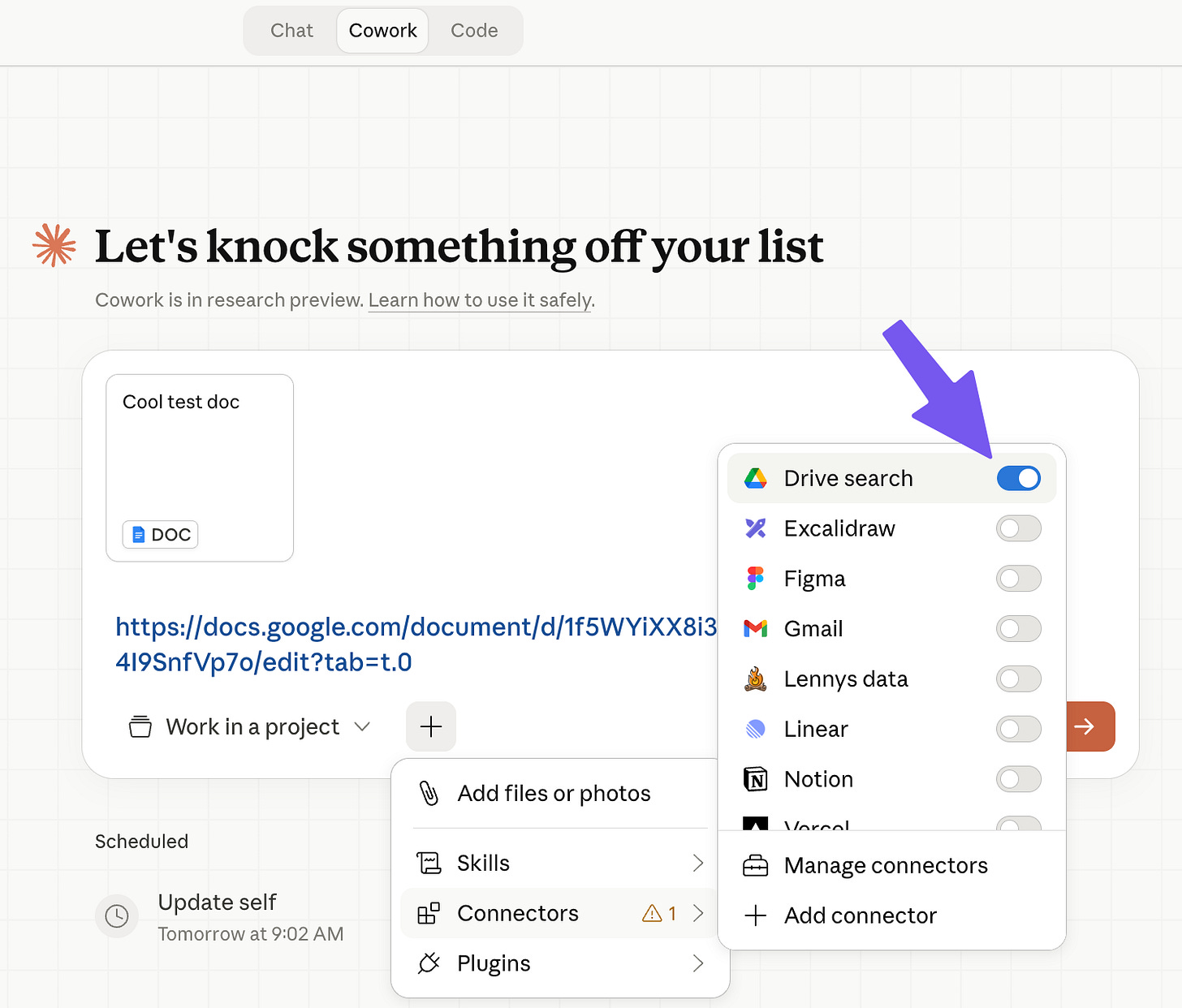
The Google Drive connector works on Claude web, cowork, and code.

It’s not elegant, but we don’t have time to wait for elegant.
Goooooooooooooooooooogle!
The list of startups shows there’s no technical barrier here. Incumbents have a massive advantage here more than anywhere else: they’re approved, adopted, and sticky.
As I was writing this article, I noticed Google started beta testing a feature where you can collaborate with Gemini in Google docs with “suggestion mode” 🤩 (I’d be over the moon if I could use my desktop AI agent to edit Google Docs in suggestion mode, too.)
If Google builds a Cursor-like experience into Google Docs (and supports integrations to my other tools, and supports custom instructions and skills…), AI use could shift back to the web.
That said, Notion did create that Cursor-like webby experience, and Notion users didn’t seem to be using Notion AI, even though it's built on Claude Managed Agents:
“We actually don’t [use Notion AI], and I couldn’t tell you with total clarity why that is.”
“We recently switched to Notion since the Google Drive MCP doesn’t allow claude to write/edit documents... I honestly haven’t used Notion’s built-in AI”
"I'm not really using Notion AI; rather, I'm using Claude Code to push my docs into Notion, which is where folks go in and leave comments/feedback/etc."
I understand them. I’m a huge Notion user, and I haven’t built a habit of using Notion AI. I don’t know why.
I’ve never hoped so much for a post to become obsolete
You'd think by now there'd be a simple answer for
“How do I share AI context with my teammates”
“How do I collaborate on something with both humans and AI”
Every major software ecosystem will need a clear answer to both those questions. I can imagine a future where models and harnesses become commoditized, and the crown will belong to the system that holds the most knowledge, most integrations, and strongest workplace network effects.
Here’s what would make this post obsolete:
More Cursor-like experiences (from web document editing to local agents)
Zippier tooling for agents to traverse and edit cloud documents as smoothly as a file system.
More-and-better integrations, both by agents and by systems of record. (I hope competition drives down the gimmicks and gating we see today.)
For now, don’t hold your breath. Start janky. Play. Maintain optionality by keeping your files where they are, and in conventional formats.
When the answers to those questions finally ship, you’ll already know exactly how you use AI as a team.
One org I worked with synced several days’ worth of quarterly planning transcripts into a shared folder. Each PM could ask their AI “what are the dependencies on my team?” and it would traverse all the transcripts. You can imagine the possibilities from there.
“Shared folder” and “Shared drive” are super similar concepts. We ideally want to use our desktop agent to open a single working directory that contains multiple shared folders and your private stuff, too. A shared folder can live alongside other folders more easily. (I believe there’s a nerdy path to use shared drives with a local symlink on your computer. But that's a lot of friction for widespread adoption.)
I confess that I use GitHub for knowledge work for working on Familiar. That’s because we include the codebase alongside our strategy documents and research transcripts. (Even that’s not necessary. We totally could have used GitHub for the code, and Google Drive for the rest, as long as our local coding agent has access to both.) Also, we’re two people.
I love asking AI to improve itself at the end of a session: “Use the feedback I gave you to improve CLAUDE.MD so next time this goes faster/better/smoother.”
As of writing this, Claude’s connector can only read and upload entire files. Even the Google command line interface can only “append text to a document.” Grrrreaaaaat.
EDIT: Two days after publishing, the new Claude Code Desktop app included a basic text file editor 🎉 PREVIOUS: Anthropic, I’d love if Claude Desktop had a basic text editor/file browser where I could conveniently view Claude’s changes and collaborate. Bonus if it did basic pretty markdown rendering. The most valuable knowledge work still involves pairing, and most people don’t want to know what Obsidian is.
Great points. We’re currently running a team experiment at my company, and we chose GitHub as our knowledge base. I like the “driving stick” analogy - that’s exactly how it feels for a PM who doesn’t code much.
However, since we have some highly technical people involved, we’ve moved beyond simply sharing knowledge or producing “knowledge artifacts.” We’re actually building things together (skills, MCPs, connectors, etc.), and GitHub has been very helpful at this stage.
Great piece. One question though, why not Claude Teams Projects for the shared context problem? You can create shared projects with custom instructions, upload reference docs, and give the whole team access to the same context. No symlinks, no Google Drive desktop installs, no "make available offline." It's not a local filesystem agent, but for the 80% of knowledge workers who aren't going to learn terminal commands, it seems like the simpler answer. Curious what you think is missing from it.